How to Secure a WordPress Website in 2026: 10 Essential Steps
WordPress powers millions of websites, from personal blogs and business websites to online stores and major publishing platforms. Its flexibility makes it an excellent choice for website owners, but keeping a WordPress website secure requires regular maintenance and good security practices.
Cybercriminals frequently target websites with outdated plugins, weak passwords, vulnerable themes, and poorly configured hosting environments. A compromised website can lose search engine visibility, expose customer information, distribute malicious files, or become unavailable to visitors.
The good news is that you do not need to be a cybersecurity expert to improve your website’s protection.
In this guide, you will learn how to secure a WordPress website in 2026 using practical steps that help reduce security risks and protect your website, visitors, and business.
Why Is WordPress Website Security Important?
Website security is not just a technical concern. It also affects your reputation, user trust, and online business.
If attackers compromise your website, they may attempt to:
- Steal administrator credentials.
- Inject malicious scripts into your pages.
- Redirect visitors to suspicious websites.
- Install malware or unauthorized files.
- Access sensitive customer information.
- Disrupt your website or online store.
- Damage your website’s reputation in search engines.
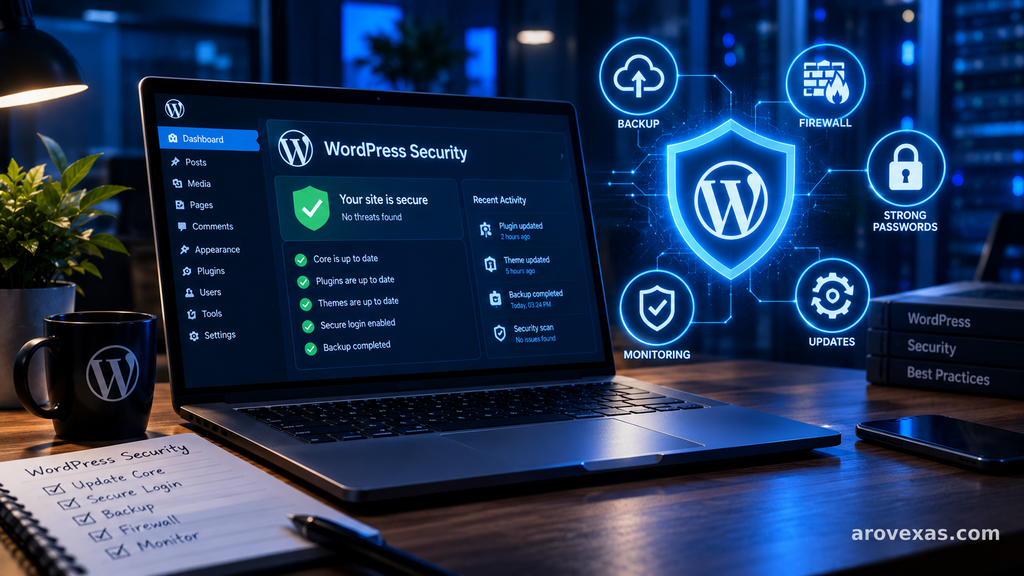
WordPress itself receives security updates, but your website also depends on its plugins, themes, hosting configuration, and administrator accounts. Keeping these components secure is essential. WordPress Security Guide
1. Keep WordPress Core, Plugins, and Themes Updated
One of the most important WordPress security practices is installing updates promptly.
Updates can introduce new features, fix bugs, improve compatibility, and close security vulnerabilities. Attackers may actively search for websites running outdated software with publicly documented weaknesses.
To check for updates:
- Log in to your WordPress dashboard.
- Open Dashboard → Updates.
- Review available WordPress, plugin, and theme updates.
- Back up your website before significant changes.
- Install updates and check that your website works correctly.
Remove plugins and themes you no longer use. Inactive software can still create unnecessary maintenance and security risks.
Enable automatic updates where appropriate, particularly for actively maintained components. For business-critical websites, test major updates on a staging site before applying them to production.
Important: Download WordPress, themes, and plugins from trusted sources. Avoid pirated or “nulled” premium plugins because they may contain malicious code.
2. Use Strong Passwords and Two-Factor Authentication
Weak passwords are an avoidable security risk.
Avoid passwords based on your name, website name, birthday, or common words. Never reuse your administrator password on multiple websites.
Instead, use a password manager to generate and store a unique, long password for every important account.
You should also enable two-factor authentication (2FA) for administrator accounts. Depending on the solution you choose, signing in may require an authentication-app code, security key, or another verification method in addition to your password.
These measures help protect your website even if someone discovers or steals your password.
Review your WordPress user list regularly and remove accounts that are no longer needed. Give each user only the permissions required for their role.
3. Install a Reputable WordPress Security Plugin
A reputable security plugin can make it easier to monitor and protect your website.
Depending on the product and configuration, security plugins may offer features such as:
- Malware scanning.
- File-change monitoring.
- Login protection.
- Suspicious activity alerts.
- Security audit logs.
- Firewall rules.
- Blocking or rate-limiting repeated login attempts.
Before installing a security plugin, review its update history, developer reputation, compatibility, documentation, and support options.
Do not install multiple overlapping security plugins without understanding how they interact. Conflicting firewall rules or duplicate scanning features can cause problems.
Remember that a security plugin is only one layer of protection. It cannot compensate for outdated software, insecure hosting, missing backups, or compromised administrator credentials.
4. Protect the WordPress Login Page
The WordPress login page is a common target for automated password-guessing attacks.
To reduce the risk:
- Use a unique administrator username and strong password.
- Enable two-factor authentication.
- Apply rate limits to repeated failed login attempts.
- Monitor unusual login activity.
- Disable unused accounts.
- Consider restricting administrator access where practical.
Some site owners change the default login URL, but this should be treated as an additional measure rather than a primary security solution. It does not replace strong authentication or server-side protections.
If you manage a business website with several users, establish clear account policies and remove access promptly when a person no longer needs it.
5. Choose Secure WordPress Hosting
Your hosting provider plays an important role in website security.
A reliable hosting environment should maintain server software, support currently maintained PHP versions, provide HTTPS, and offer appropriate isolation between customer accounts.
Before selecting or renewing a hosting plan, investigate whether it includes:
- Regular server maintenance and security updates.
- Automatic backups and a clear restoration process.
- SSL/TLS certificate support.
- Malware detection or security monitoring.
- Access to recent PHP versions.
- Protection against common network attacks.
- Responsive technical support.
Shared hosting can be suitable for many small websites, but account isolation and the provider’s security practices matter. More demanding websites may need managed WordPress hosting or a more configurable server environment.
Do not assume that a hosting provider automatically handles every aspect of WordPress security. Confirm which responsibilities belong to you and which belong to the provider.
6. Enable HTTPS and Maintain Your SSL/TLS Configuration
HTTPS encrypts information exchanged between a visitor’s browser and your website.
This is particularly important for login pages, contact forms, membership websites, and online stores.
To enable HTTPS:
- Obtain an SSL/TLS certificate through your hosting provider or a trusted certificate authority.
- Configure your website to use HTTPS.
- Redirect HTTP requests to HTTPS.
- Check that images, scripts, stylesheets, and other resources load securely.
- Renew the certificate when required.
A valid certificate helps protect data in transit, but it does not mean your website is free from malware or vulnerabilities.
After enabling HTTPS, check your browser for security warnings and mixed-content errors. If your website accepts payments or sensitive information, follow the relevant payment and privacy requirements as well.
7. Create Regular Backups and Test Restoration
Even a well-maintained website can experience a failed update, server problem, accidental deletion, or security incident.
Backups provide a recovery option when something goes wrong.
A useful backup strategy should include:
- Website files: WordPress core files, themes, plugins, and uploads.
- Database: Posts, pages, settings, users, and other stored information.
- Off-site copies: Backups stored separately from the production server.
- Retention: Enough historical copies to recover from problems discovered late.
- Restoration testing: Periodically confirm that the backup can actually be restored.
Choose a backup schedule based on how often your website changes. A frequently updated store or membership site may require more frequent backups than a small static business website.
Keep in mind that a backup stored only on the same compromised server may not be sufficient during a serious incident.
The goal is not merely to create backups. It is to ensure that you can restore a clean, working website when needed.
8. Protect Important WordPress Files and Permissions
WordPress security also depends on server configuration and file access.
Incorrect permissions can expose files to unauthorized modification, while excessive access rights can increase the damage caused by a compromised account.
Work with your hosting provider or developer to ensure that:
- Files and directories use appropriate permissions.
- Configuration files are not unnecessarily exposed.
- Administrative access is restricted.
- File transfer and server access use secure methods.
- Unused services and accounts are disabled.
- Server software is kept up to date.
Avoid changing permissions randomly or applying restrictive settings without understanding their effects. Incorrect permissions can break uploads, updates, or other website functions.
For additional protection, WordPress documents the DISALLOW_FILE_EDIT configuration option, which can disable editing plugin and theme files from the dashboard.
This is not a complete defense against file modification, but it may reduce certain risks if an administrator account is compromised. Review the official WordPress hardening guide before changing configuration settings.
9. Monitor Your Website for Malware and Suspicious Changes
Prevention is important, but monitoring helps you identify problems that may have escaped your other defenses.
Depending on your setup, you can use security scans, hosting-level malware detection, file-integrity monitoring, access logs, and security alerts.
Investigate warning signs such as:
- Unexpected administrator accounts.
- Unknown files or recently modified core files.
- Redirects that you did not configure.
- Unfamiliar plugins or themes.
- Sudden changes to website content.
- Unusual login activity.
- Security warnings reported by your hosting provider or browser.
Not every unexpected file change indicates an attack. Updates and legitimate maintenance can also modify files, so investigate before deleting anything.
If you suspect a compromise, preserve relevant logs, contact your hosting provider, and restore from a known-clean backup if appropriate. Change credentials from a trusted device and investigate the original entry point before returning the website to normal operation.
Simply deleting suspicious files without finding the cause may allow the attacker to regain access.
10. Use a Web Application Firewall and Reduce Unnecessary Access
A web application firewall (WAF) can filter certain malicious requests before they reach your website. Depending on its configuration, it may help block common exploit attempts, suspicious traffic, and some automated attacks.
A WAF can operate through a hosting provider, a security service, or a server-level solution. Choose an option that fits your website and understand how it handles legitimate traffic.
You should also apply the principle of least privilege: every user, plugin, and service should have only the access it needs.
For example:
- Give content editors an appropriate editing role rather than administrator access.
- Remove unused administrator accounts.
- Avoid sharing one account among multiple people.
- Restrict access to hosting and domain management accounts.
- Review third-party integrations periodically.
- Disable features that are genuinely unnecessary, after checking their dependencies.
Reducing unnecessary access makes it harder for a single compromised account to affect the entire website.
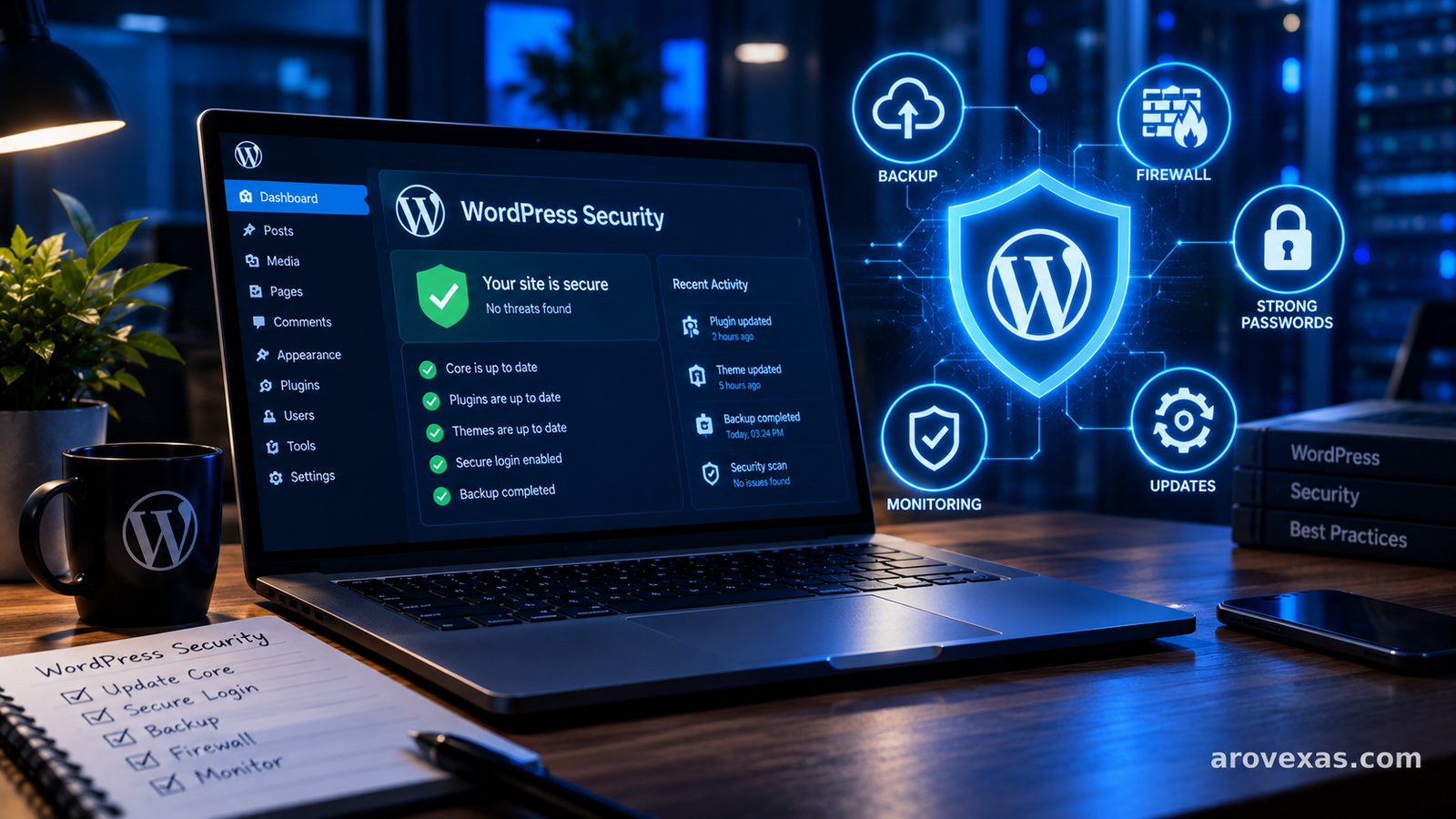
WordPress Security Checklist for 2026
Use this checklist to review your website’s current security.
- WordPress core is updated.
- Plugins and themes are updated and actively maintained.
- Unused plugins and themes have been removed.
- Every important account uses a unique, strong password.
- Two-factor authentication is enabled for administrators.
- User roles and permissions have been reviewed.
- HTTPS works correctly across the website.
- Backups are stored separately and can be restored.
- Security scanning or monitoring is configured.
- Hosting and PHP versions are supported and maintained.
- Login protection and appropriate firewall controls are active.
- An incident recovery plan is available.
You do not need to implement every advanced control at once. Start with updates, authentication, backups, and trustworthy hosting, then improve monitoring and access controls.
Common WordPress Security Mistakes to Avoid
Some website owners unintentionally create security problems while trying to save time or money.
Avoid these common mistakes:
Installing too many plugins: Every additional component creates another dependency to maintain. Install only what you need and keep it updated.
Ignoring security notifications: A warning about a vulnerable plugin or outdated PHP version should be investigated promptly.
Relying on backups alone: Backups help with recovery but do not prevent an attack. Combine them with preventive security measures.
Using pirated themes or plugins: Untrusted software may contain hidden code or modified components.
Assuming HTTPS means the website is secure: HTTPS protects connections, not every part of your website.
Never testing recovery: An untested backup may fail when you need it most.
Avoiding these mistakes can significantly improve your website’s security posture.
Frequently Asked Questions
How can I secure a WordPress website for free?
Start by updating WordPress, plugins, and themes; using strong passwords; enabling two-factor authentication where available; removing unused software; enabling HTTPS; and configuring reliable backups. Your hosting provider may also include basic security features.
What is the best way to protect WordPress from hackers?
There is no single solution that prevents every attack. A strong approach combines timely updates, secure authentication, trusted hosting, least-privilege access, regular backups, monitoring, and appropriate firewall protection.
Do I need a security plugin for WordPress?
A security plugin can simplify scanning, monitoring, login protection, and firewall configuration. However, your security requirements depend on your hosting environment and website. A plugin should complement, not replace, basic maintenance and secure server configuration.
How often should I back up my WordPress website?
The frequency depends on how frequently your content and database change. Websites with frequent orders, registrations, or publishing activity generally need more frequent backups than sites that rarely change. Keep off-site copies and test restoration regularly.
Can an outdated WordPress plugin put my website at risk?
Yes. An outdated plugin may contain a vulnerability that attackers can exploit, depending on the flaw and the website’s configuration. Update vulnerable components promptly, and remove plugins that are no longer needed or maintained.
Does WordPress automatically update plugins?
WordPress supports optional automatic updates for plugins and themes, but not every component is necessarily updated automatically in every situation. Review the update settings in your dashboard and maintain a process for checking security advisories and applying updates.
Final Thoughts
Learning how to secure a WordPress website is an ongoing process rather than a one-time task. New vulnerabilities, software releases, and attack methods emerge over time, making regular maintenance essential.
Start with the fundamentals: update your software, secure administrator accounts, use trusted hosting, enable HTTPS, and maintain tested backups. Then strengthen your setup with monitoring, a suitable firewall, and carefully managed user permissions.
These practical measures can reduce avoidable risks and help keep your website reliable for visitors.
At Arovexas, we recommend making website security a regular part of your maintenance routine—not something you address only after a problem occurs.